Adding Books
BookLogr provides two flexible ways to build your digital library: searching the OpenLibrary database for quick entry or manually inputting details.
Searching for a Book
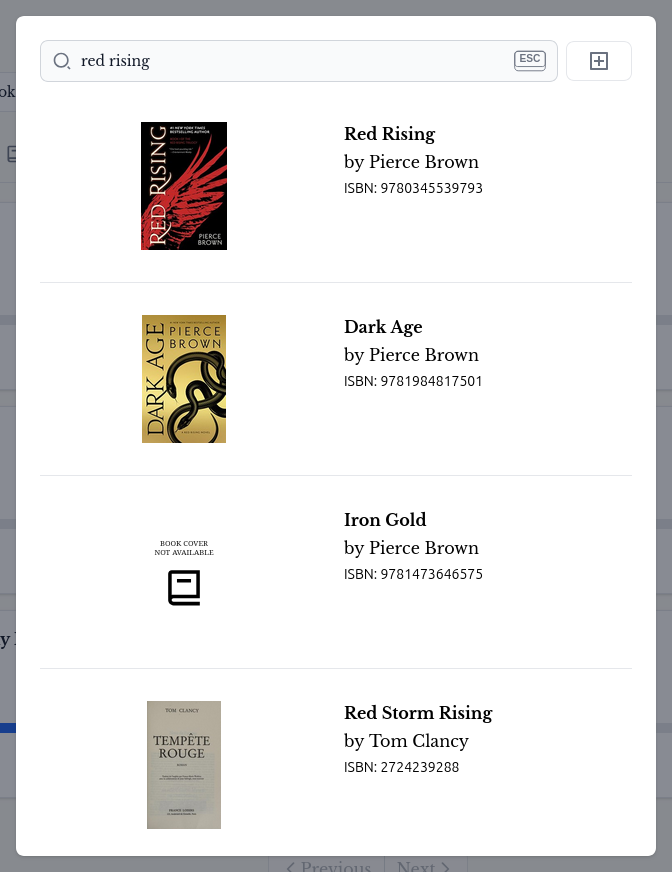
The fastest way to add a book is by using the search functionality, which is powered by OpenLibrary.
- Click on the Search bar (or use the shortcut
CTRL+K). - Enter the Title, Author, or ISBN of the book.
- Select the correct edition from the results list.
- Choose which list to add it to (Reading, To Be Read, Read, or Did not finish).
Manual Entry
If a book cannot be found in the OpenLibrary database—such as a specific local publication, a rare manuscript, or a newly released title—you can add it manually.
- Perform a search as described above.
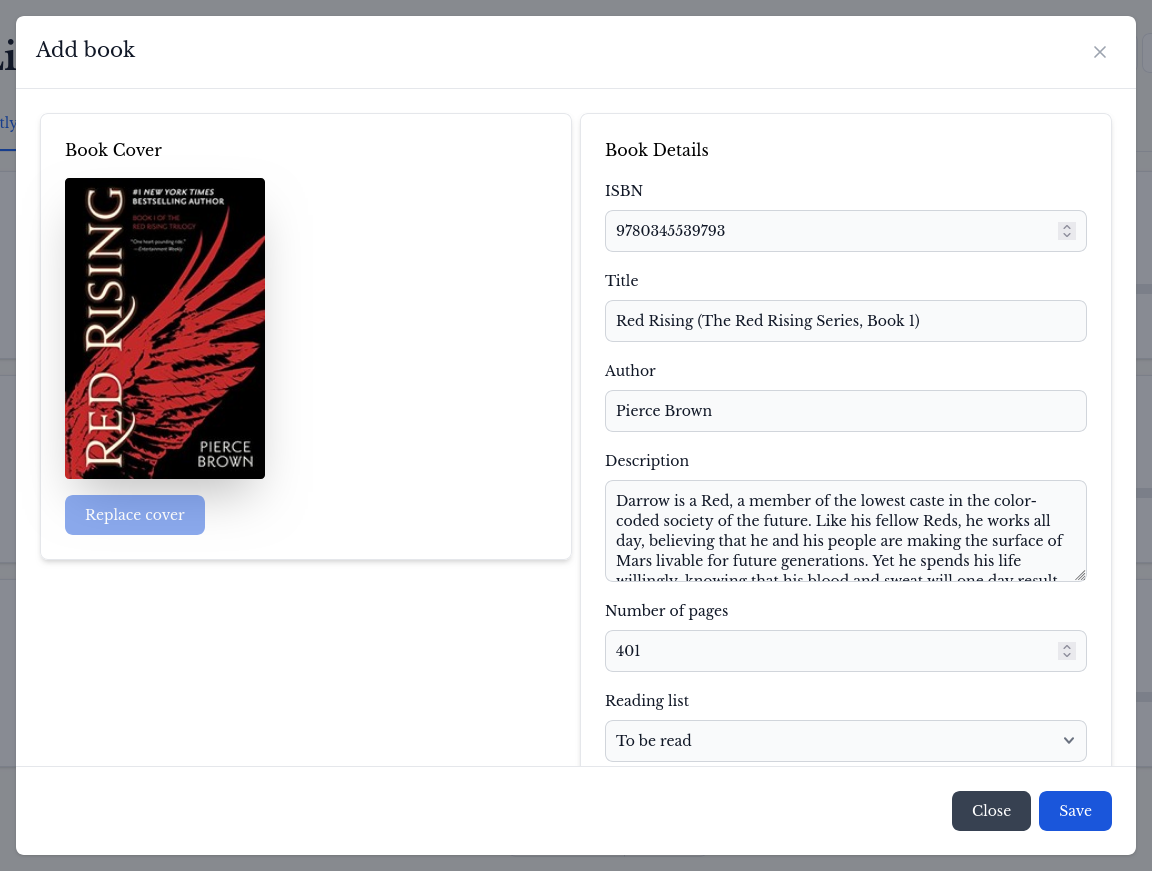
- If no results are found, or if your specific edition is missing, click the "Add Book" button.
- Fill in the required metadata:
- Title and Author (Required)
- Total Pages (Highly recommended for tracking progress)
- ISBN
- Description
- Click Save to add the book to your library.
Switching Lists
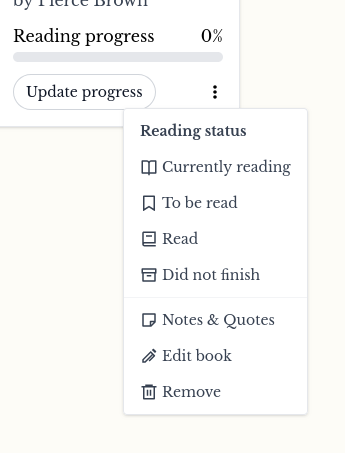
Once a book is added, you can move it between your lists at any time. For example, once you finish a book in your reading list, you can move it to Read and leave a rating or a few notes.
If you decide to stop reading a book before finishing, you can now move it to the Did not finish list to keep your reading list tidy while still maintaining a record of the book.